
After completing this lesson, you’ll be able to:
In this lesson, you will:
After completing this lesson, you’ll be able to:
In this lesson, you will:
You access FME Flow through the URL http(s)://<FMEFlowHostname>:<port>/fmeserver. You may not need the port depending on the FME Flow deployment architecture. It's best to confirm your organization's FME Flow host and URL with your FME Flow administrator.
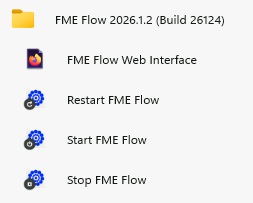
If you have access to the host machine for FME Flow, you can navigate to http://localhost/fmeserver or open the Start menu, expand the FME Flow folder, and click the shortcut to open the FME Flow web interface. These options are only available directly on the same machine as FME Flow.
FME Flow opens to the login page, where you input your credentials. If your organization has an authentication service configured, FME Flow will also offer the option to log in via that service. Again, you'll need to contact your FME Flow administrator if you are unsure.
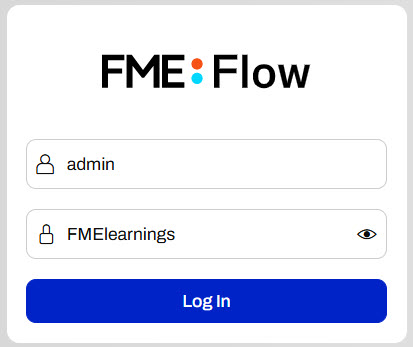
If you're taking a Safe Software-hosted training course, you can access FME Flow at http://localhost and the FME Flow login credentials are username: admin and password: FMElearnings.
If you are not taking a Safe Software-hosted course and you have just installed FME Flow and haven't logged in yet, you must use the default username/password, admin/admin, to log in. After entering the default credentials, you will need to create a new password for the admin user account. Then log in using the username admin and your new password. Because this is a fresh install, you will also have to license FME Flow before continuing; see the FME Flow Licensing Walk-Through.
If you are using FME Flow Hosted, see these instructions.
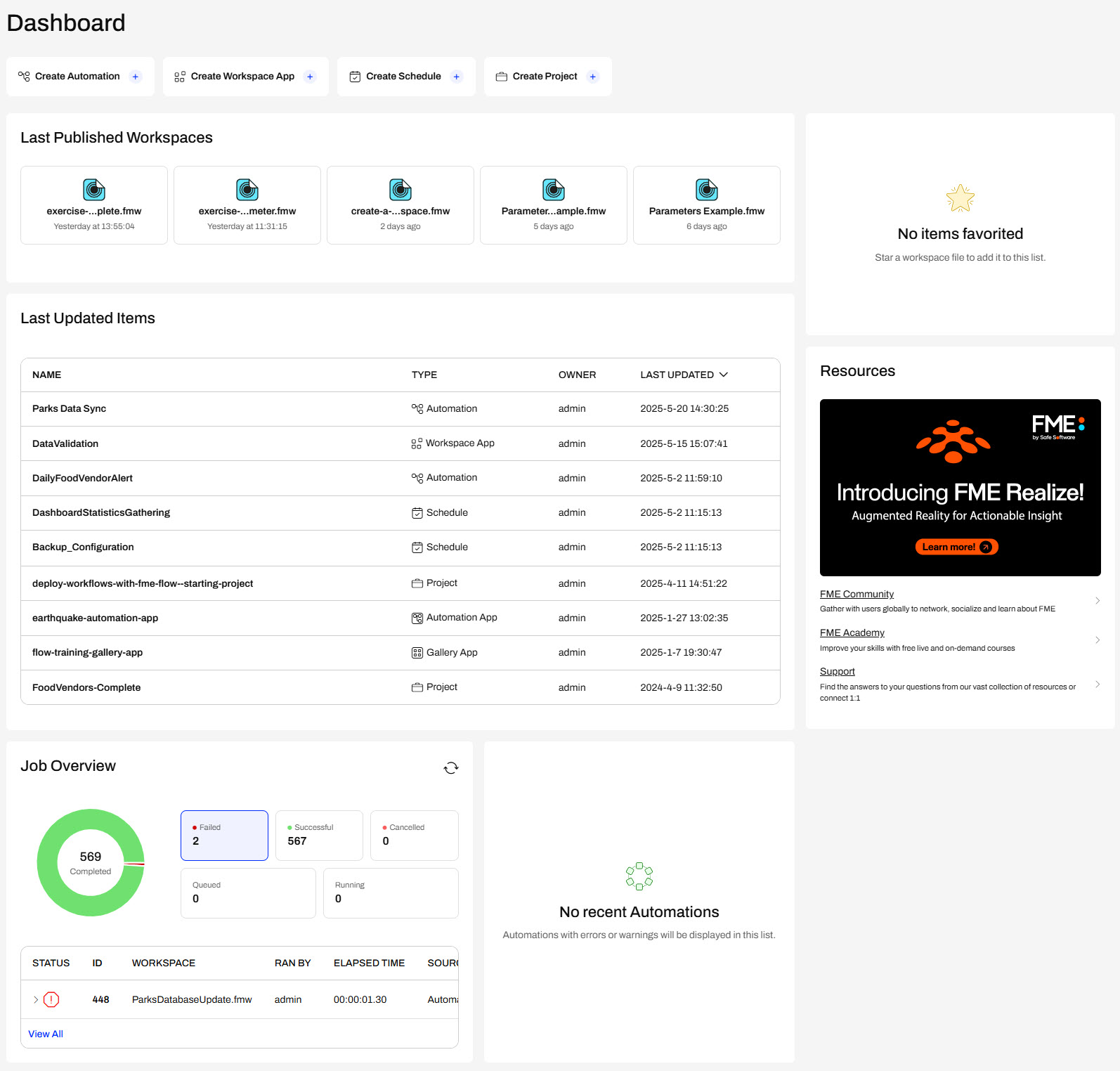
When you log in to FME Flow, the home page Dashboard opens. Across the top, there are shortcuts to FME Flow functions. The main part of the page provides an overview of recent activity, including the latest published workspaces, updated items, job requests, and Automations. You can click on any of these items to open them on FME Flow quickly. If you are an admin, you can access almost all content and functionality on FME Flow. If you do not have permission to access other users' content, you will only see an overview of your own items on the FME Flow Dashboard. On the right side of the Dashboard, you can access your favorite items and links to helpful FME resources.
You control FME Flow permissions through User Management. To learn more about managing users, roles, and permissions, see our FME Flow documentation on User Management.
FME Flow's navigation menu is along the left side of the page.
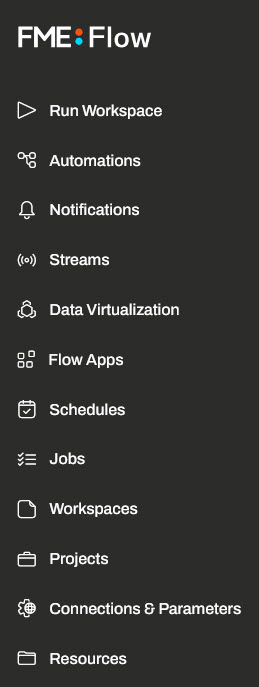
The top section relates to using FME Flow. Click on each section to learn what each function does.
 Run Workspace
 Automations
 Notifications
 Streams
 Data Virtualization
 Flow Apps
 Schedules
 Jobs
Jobs Workspaces
 Projects
 Connections & Parameters
 Resources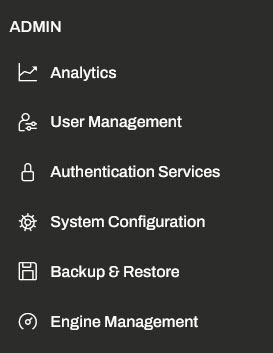
The bottom section relates to administering FME Flow. If you have admin permissions, you use these functions to manage processing engines, configure security rules, manage user permissions, and more.
 Analytics
 User Management
 Authentication Services
 System Configuration
 Backup & Restore
 Engine Management
You may collapse and expand as you work on FME Flow with the arrow at the top of the menu panel. When you collapse the menu, FME Flow only displays the icons for each section; hover over each icon to view its tooltip text.

 & User Settings
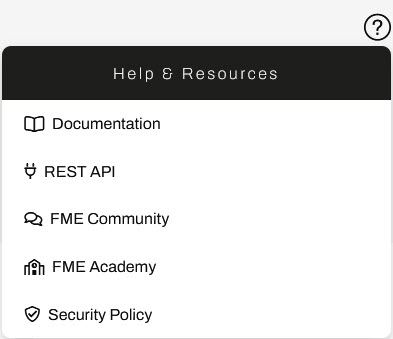
In the top-right corner, you'll find the Help & Resources and User Settings options. Help & Resources contains useful links to documentation, the FME Community and Academy, Safe Software's security policy, and the REST API.
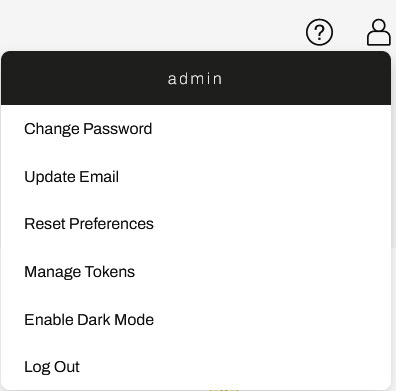
User Settings lets you adjust settings specific to your FME Flow user account. You can change your email and password, manage preferences, and log out of FME Flow here.
Open the FME Flow login page in a web browser, log in using your FME Flow credentials, and explore the FME Flow home page and menu options.
How you log in will depend on which FME Flow instance you are using.
Safe Software-hosted Training Course
If you are taking a Safe Software-hosted training course, you can access FME Flow at http://localhost/ in the web browser. In the Strigo lab, FME Flow should automatically open to the login page in Firefox.
A Brand-New FME Flow Instance
If you are not taking a Safe Software-hosted course, have just installed your FME Flow, and haven't logged in yet, you must use the default username/password, admin/admin.
FME Flow Hosted
If you are using FME Flow Hosted, see these instructions.
You access FME Flow through the URL http(s)://<FMEFlowHostname>:<port>/fmeserver. You may not need the port depending on the FME Flow deployment architecture. It's best to confirm your organization's FME Flow host and URL with your FME Flow administrator.
If you have access to the host machine for FME Flow, you can navigate to http://localhost/fmeserver or open the Start menu, expand the FME Flow folder, and click the shortcut to open the FME Flow web interface. These options are only available directly on the same machine as FME Flow.
FME Flow opens to the login page, where you input your credentials. If your organization has an authentication service configured, FME Flow will also offer the option to log in via that service. Again, you'll need to contact your FME Flow administrator if you are unsure.
If you're taking a Safe Software-hosted training course, you can access FME Flow at http://localhost and the FME Flow login credentials are username: admin and password: FMElearnings.
If you are not taking a Safe Software-hosted course and you have just installed FME Flow and haven't logged in yet, you must use the default username/password, admin/admin, to log in. After entering the default credentials, you will need to create a new password for the admin user account. Then log in using the username admin and your new password. Because this is a fresh install, you will also have to license FME Flow before continuing; see the FME Flow Licensing Walk-Through.
If you are using FME Flow Hosted, see these instructions.
When you log in to FME Flow, the home page Dashboard opens. Across the top, there are shortcuts to FME Flow functions. The main part of the page provides an overview of recent activity, including the latest published workspaces, updated items, job requests, and Automations. You can click on any of these items to open them on FME Flow quickly. If you are an admin, you can access almost all content and functionality on FME Flow. If you do not have permission to access other users' content, you will only see an overview of your own items on the FME Flow Dashboard. On the right side of the Dashboard, you can access your favorite items and links to helpful FME resources.
You control FME Flow permissions through User Management. To learn more about managing users, roles, and permissions, see our FME Flow documentation on User Management.
FME Flow's navigation menu is along the left side of the page.
The top section relates to using FME Flow. Click on each section to learn what each function does.
Run Workspace Automations Notifications Streams Data Virtualization Flow Apps Schedules Jobs Workspaces Projects Connections & Parameters Resources
The bottom section relates to administering FME Flow. If you have admin permissions, you use these functions to manage processing engines, configure security rules, manage user permissions, and more.
Analytics User Management Authentication Services System Configuration Backup & Restore Engine ManagementYou may collapse and expand as you work on FME Flow with the arrow at the top of the menu panel. When you collapse the menu, FME Flow only displays the icons for each section; hover over each icon to view its tooltip text.
& User Settings In the top-right corner, you'll find the Help & Resources and User Settings options. Help & Resources contains useful links to documentation, the FME Community and Academy, Safe Software's security policy, and the REST API.
User Settings lets you adjust settings specific to your FME Flow user account. You can change your email and password, manage preferences, and log out of FME Flow here.
Open the FME Flow login page in a web browser, log in using your FME Flow credentials, and explore the FME Flow home page and menu options.
How you log in will depend on which FME Flow instance you are using.
Safe Software-hosted Training Course
If you are taking a Safe Software-hosted training course, you can access FME Flow at http://localhost/ in the web browser. In the Strigo lab, FME Flow should automatically open to the login page in Firefox.
A Brand-New FME Flow Instance
If you are not taking a Safe Software-hosted course, have just installed your FME Flow, and haven't logged in yet, you must use the default username/password, admin/admin.
FME Flow Hosted
If you are using FME Flow Hosted, see these instructions.
